
































One Charger, Zero Clutter: Rethinking Your Desk Power
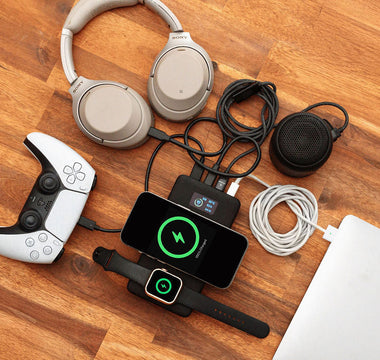
A home office charging station should not look like a snake pit of cables and power bricks. If your desk is covered in chunky adapters for your laptop, monitors, dock, and phone, it is probably slowing you down and stressing you out. One well-chosen GaN charger can replace most of that clutter and keep your whole setup powered from a single wall outlet.
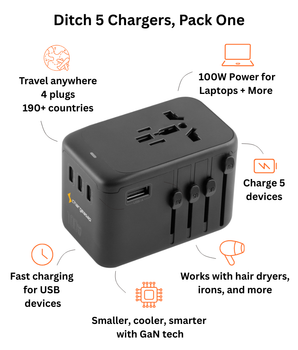
GaN, or gallium nitride, is a newer material used inside modern chargers. It wastes less energy as heat, so the charger can be smaller while still giving you serious power. That makes it perfect for a clean home office and for tossing in a bag when you head out to a cafe or on a trip.
In this guide we will talk about how to plan your power, what one GaN charger can realistically handle, and which devices still need their own bricks. With spring cleaning in full swing and summer travel on the way, it is the perfect moment to tune up your desk before your calendar gets busy again here in Australia or wherever you work.
Know Your Power Budget Before You Unplug Bricks
Power budgeting is just like planning a weekly food shop. You list what you need, you see how much it all adds up to, then you make sure your charger can cover it with some room to spare.
Start with rough wattage ranges for common gear:
- Laptops, usually 45 to 140 W depending on size and performance
- USB-C monitors, often 15 to 90 W through USB-C Power Delivery
- Docks and hubs, around 15 to 60 W pass through, plus a bit of their own overhead
- Smaller accessories like phones, tablets, earbuds, cameras, about 5 to 30 W each
You do not need perfect numbers, just ballpark figures. Check the small print on your current power bricks or on the label under your monitor or laptop. Use the higher number you see listed for output, not input.
There is a difference between peak draw and what you use most of the day. Your laptop might spike when you are in a video call, running lots of browser tabs, or editing media. To stay safe, we suggest adding about 20 to 30 percent on top of your total. That buffer keeps things stable when everything is busy at once.
It also helps to sort your devices into two groups:
- Must stay on , laptop, main monitor, maybe a dock
- Opportunistic charging , phone, tablet, earbuds, power bank
When the charger has to share power between ports, the must stay on devices get priority. The rest can charge a bit slower without hurting your work.
Can One GaN Charger Really Run Dual Monitors?
- Two USB-C monitors, both getting power and video, usually through a dock or hub
- One USB-C-powered monitor plus a second HDMI or DisplayPort monitor that still uses its own power brick
For a typical home office charging station, you might see a setup like this:
- A laptop that wants around 65 to 100 W
- One USB-C monitor that likes 45 to 65 W
- A dock that needs 15 to 25 W of overhead
- A few accessories sharing 20 to 40 W total
Add those up and you quickly land in the 140 W and up range once you include that safety buffer. That is where a higher-power GaN charger really shines.
Port layout matters a lot. Multiport GaN chargers usually have:
- One or two high-wattage USB-C ports
- A shared power pool that splits as you plug in more devices
- One or two lower-wattage USB-A or USB-C ports for phones and smaller gear
When you use several ports at once, the charger may lower the max power per port to stay within its total limit. This is called dynamic power distribution, and it is normal. To keep your laptop happy, always plug it into the highest-wattage USB-C port.
As a simple guide:
- Around 100 W works well for one ultrabook and one USB-C monitor, plus a phone
- Around 140 W or more is better for a powerful MacBook Pro or similar and dual displays, especially if one monitor is powered over USB-C
If your second monitor has its own brick and only needs video from HDMI, your charger's job is easier, and you may get by with a smaller wattage tier.
Docking Stations, Hubs, and USB-C Accessories That Share
Docks and hubs can either take power from your GaN charger or from their own bricks. Knowing which kind you have is key.
Powered docks that rely on your GaN charger work like this:
- You plug the GaN charger into the dock's USB-C PD input
- The dock uses a bit of that power to run itself
- The rest is passed through to your laptop, monitor, and USB-C accessories
Each hop takes a small slice of power, so you want extra headroom in your budget. Standalone docks that ship with their own bricks do not hit your GaN charger as hard, since they power themselves.
A clean desk layout with one main GaN charger often looks like:
- High-wattage USB-C port from the charger into the dock
- From the dock, USB-C to your laptop and maybe one monitor
- Extra lower-wattage ports on the GaN charger feeding your phone, tablet, earbuds case
To keep things smooth and avoid throttling:
- Plug your laptop into the highest-wattage port, either on the charger or the dock
- Do not chain multiple hubs off one small port; that is asking for power drops
- If you add a new device and notice your laptop charging slower, move that new device to a lower-wattage port or let it charge later
Small tweaks in port order can make your whole setup feel more stable.
What Still Needs Its Own Brick (for Now)
Not everything should be run from one shared charger. Some devices just pull too much power or are picky about how they get it.
Common holdouts include:
- Big gaming laptops that want 200 W or more
- Large desktop-style monitors that do not take USB-C power at all
- Some audio interfaces or studio gear that prefer their own adapters
- Specialty products like external GPUs or docking boxes made for heavy graphics work
A strong GaN charger might trickle charge some of these over USB-C if they support it, but that does not always mean full performance. The maker might only support their own brick for heavy use.
The sweet spot is a mix-and-match approach. Use your GaN charger as the heart of your home office charging station, covering your laptop, USB-C monitor, phone, tablet, power bank, and other daily gear. Then tuck one or two legacy power bricks onto a power strip under your desk for the handful of high-draw or sensitive devices.
Always pick certified chargers and good quality cables, and follow safety markings for your region. When you are feeding several high-value devices from one source, those details really matter for both safety and warranty peace of mind.
Build Your One Brick Desk and Stay Ready to Travel
If you want to shift to a one brick desk, start with a quick checklist:
- Write down every device that lives on your desk
- Note the wattage listed on each brick or label
- Mark what must stay on and what can charge when power is free
- Add the must stay on numbers, then add a 20 to 30 percent buffer
- Choose a GaN charger with enough total power and at least one high-wattage USB-C port
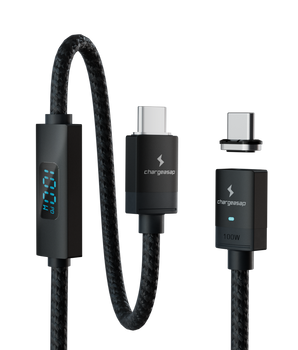
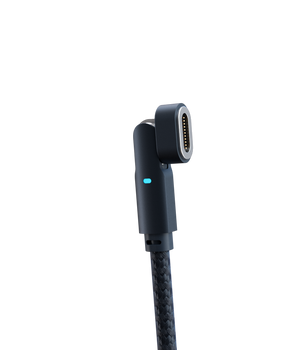
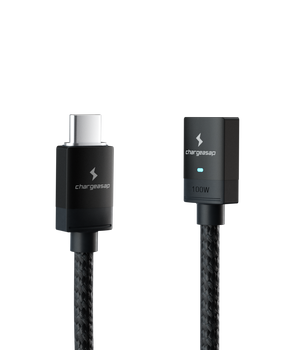
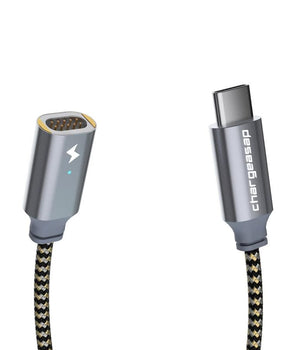
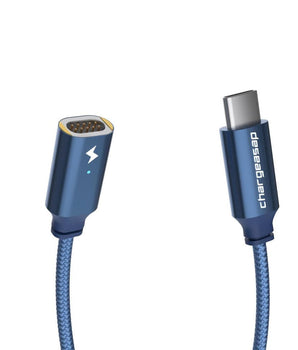
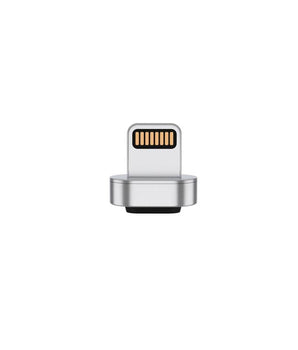
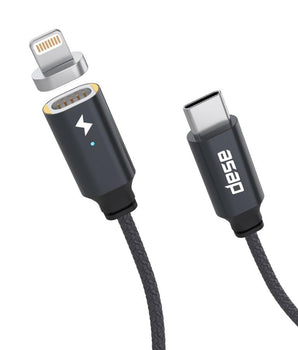
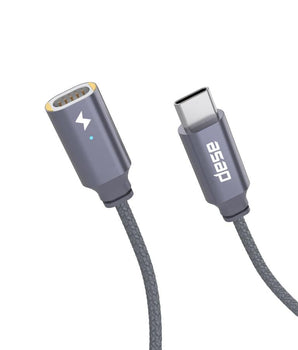
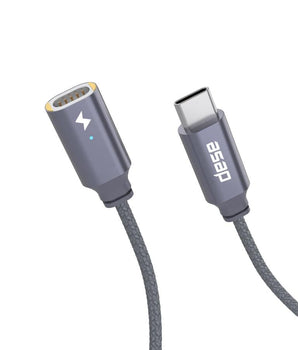
Set up your desk so the charger is easy to unplug without tearing the whole thing apart. Magnetic cables and simple cable routes help a lot here. That way, the same compact charger that runs your home desk can drop into your bag and power your laptop and phone in a hotel room, coworking space, or family visit.
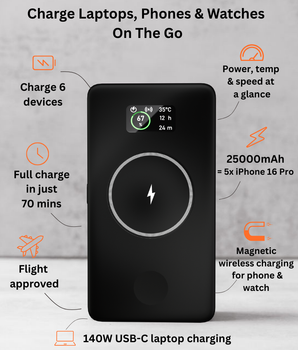
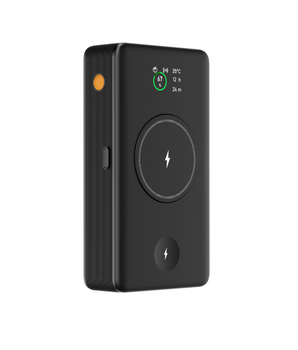
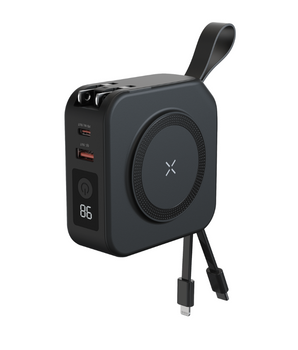
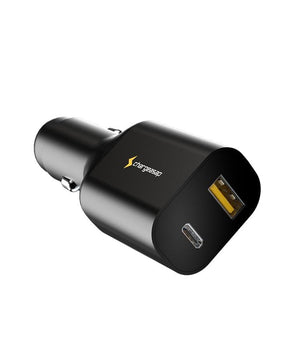
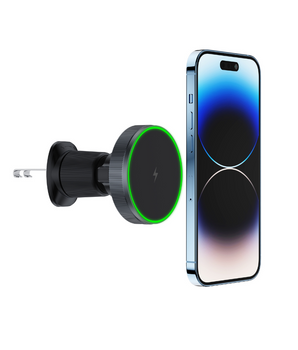
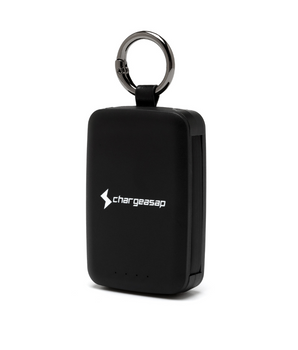
At Chargeasap, we design GaN chargers, magnetic cables, and high-capacity power banks with this kind of flexible life in mind, from our home base in Australia to desks all over the world. As seasons change and you add new monitors or swap laptops, you can tweak your power budget again, keeping that single smart charger as the backbone of a tidy, ready-to-travel workspace.
Upgrade Your Home Office Productivity With Smart Charging
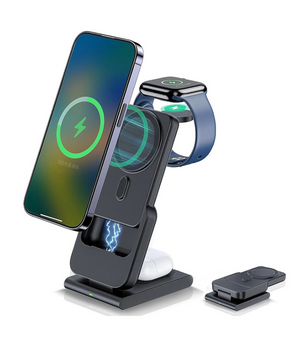
Transform your workspace into a clutter-free, high-performance hub with our all-in-one home office charging station. At Chargeasap, we’ve designed this setup to keep all your essential devices powered, organized, and ready to go throughout your workday. Streamline your desk, reduce cable chaos, and protect your gear with fast, reliable charging. Make the switch today and experience how a smarter power solution can elevate your everyday workflow.